
Free online varsity timer for workouts, practices, and drills. Count up or down with bold visuals, alarms, loops, and a large, easy-to-read display. Features
Reset
Start
Free Online Varsity Timer
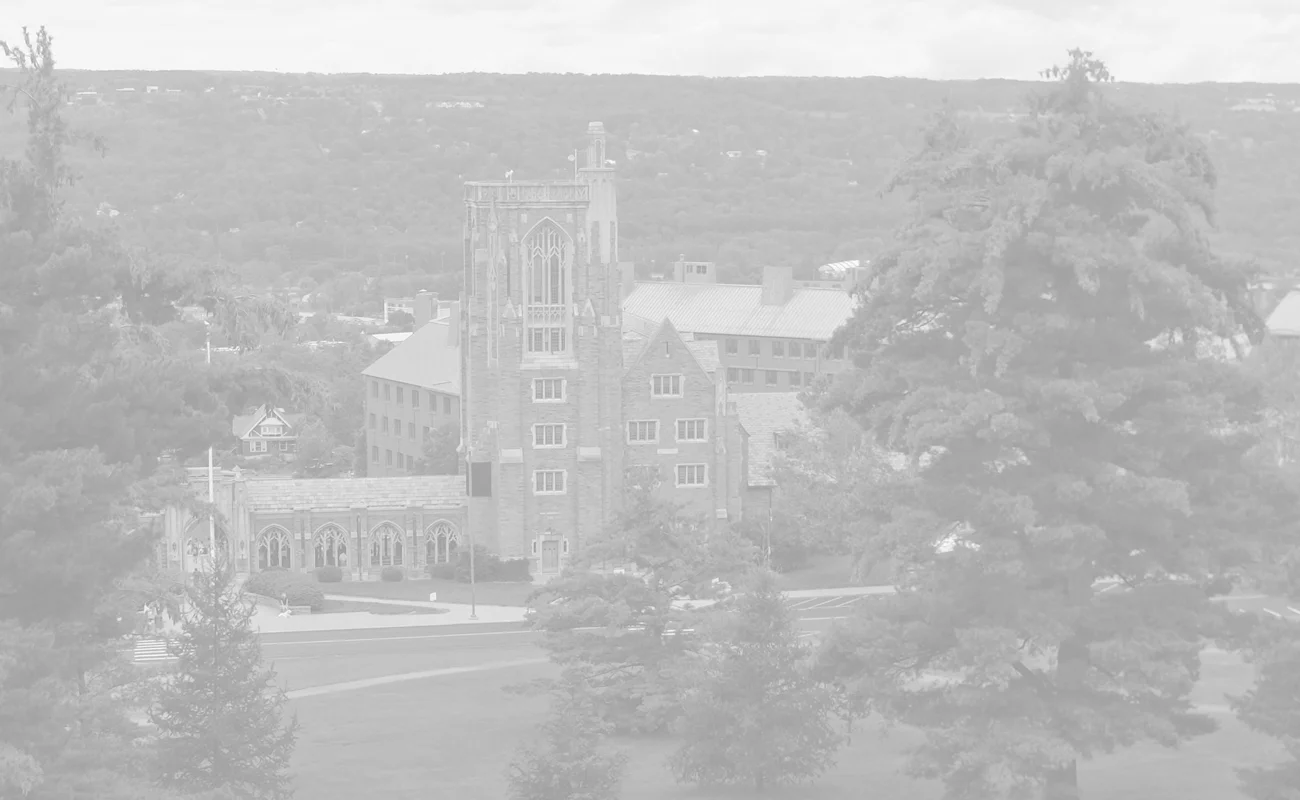
Our Varsity Timer is a showcase of what Timer123 timers can look like when you dial in the settings. It opens in a classic collegiate red with bold title, red controls, and a campus photo backdrop to illustrate what a school or team themed timer can look like. Every color, font, background, and alarm setting is yours to set and save as your own.
Click the timer title to scroll timer into view. This is helpful when the timer is displayed on a projector or a shared screen during practice, a game, or a drill. The time display fills the available space for visibility anywhere in the room.
What to Use the Varsity Timer For
Built for coaches, athletes, and anyone running timed activities where a bold, visibile display is wanted:
- Practice drills and sessions — Time individual drills, rest periods between sets, or full practice blocks. A large display visible from across the gym or field keeps the whole team aware of where they are in the session.
- Game clock simulation — Set the timer to match your sport's period or quarter length and run practice under game-like conditions. The buzzer alarm sound signals the end of the period as it would in competition.
- Interval training — Enable Loop for back-to-back intervals with no manual reset between rounds. Athletes focus on the work, not the clock.
- Halftime and break management — A visible countdown during halftime or team breaks gets everyone back on the field or court on time without the coach having to call it repeatedly.
- Classroom and academic use — The same customization that works for a sports team works for a classroom. Set school colors, a campus background, and a class-appropriate alarm sound for a timer that feels built for your environment.
- Presentations and events — A school-branded timer on a projector during an assembly, competition, or event looks polished and intentional.
- Warmup and cooldown blocks — Time a structured warmup before practice or a cooldown stretch session after. Use Auto Restart so resetting between blocks starts the next one anew.
- Overtime windows — Set the stop time to a negative value to count through zero and into overtime, so players and coaches can see how far past the scheduled end time a session has run.
Make It Your School's Timer
The default collegiate configuration is a starting point, not a requirement. Every visual and behavioral setting can be changed and saved into a shareable URL that loads the setup you created. To build your own school or team timer:
- School colors — Set the time display color, title color, and controls color independently for both light and dark modes. Use your school's hex color values for a full on match.
- Campus or team background — Paste a URL to any web-accessible image into the Background Image setting. The campus aerial photo we used lives at timer123.com/demo/campus-light.webp.
- School or team name as title — Enter your school or team name in the Title Text field. The title supports
basic HTML formatting — use
<br>for a line break,<b></b>for bold, or<i></i>for italics to style it your way. - Sport-appropriate alarm sound — Choose a buzzer, horn, or any of the 50 built-in sounds and tunes. Preview them at Try Out Sounds & Tunes before committing.
- Alarm cycles — Set the alarm to ring multiple times at the end of a period or drill so it cuts through crowd noise or gym activity.
- Keyboard shortcuts — Assign Start, Stop, and Reset to keys of your choice so you can control the timer without touching the mouse. Helps when you're on the sideline or standing at the front of the room.
- Save and share your setup — Once configured, click the icon under the timer display and copy the URL. Share it with your staff, assistant coaches, or students so they can load and use the school-branded timer too.
 | I built the first version of these timers twenty years ago. People kept using them, so I rebuilt them properly. Users can finally link to their own alarm sound, which was the number one request all these years. There's no marketing budget here, so word of mouth helps people learn about them. If this timer has earned a spot in your daily routine, mention it to someone who'd use it. https://timer123.com — John Whitney |
Varsity Timer — Common Questions
Does this timer work on phones and tablets?
Yes. The Varsity Timer works on any modern browser across desktop, mobile, and tablet. The display scales to fit your screen size.
Will the alarm sound if I switch to another tab?
Yes — whether you minimize the browser window or place the timer on another tab, alarms should sound.
How do I make the timer fill the screen during practice?
Click the timer title so timer scrolls to fill the available screen space. Combine with your browser's full-screen mode (F11) for a display that fills the entire width of
a monitor or projector.
Can I change the default red to my school's colors?
Yes — the default collegiate configuration is just a demonstration of what's possible. Open Settings and set the time color, title color, and controls color to your school's colors. Set a background image from your own campus or team photo. Save the URL and share it.
Can I count up instead of down?
Yes. Set the start time lower than the stop time and the timer counts up, no separate mode to select. Or use the swap button (between the two time fields) in the action bar to reverse the start and stop values.
How do I share this timer with my coaching staff or team?
Configure the timer's colors, background, alarm, title, start and stop times, then click the icon under the time display and copy the URL. Anyone who opens that link loads your school-branded timer as you set it up.